
Overview
The Workflow Escalation feature in SEMINE ensures a smooth and efficient approval process. If the same approver is the only user involved (example: both the 1st and 2nd approvers) in a workflow, it will automatically escalate to the defined manager for the approver, in order to achieve 4 eyes control.
Enabling Workflow Escalation
To enable this feature at the organization level:
- Go to Organization Settings > SEMINE General and turn on Escalate to manager when single user involvement under Workflow.
To enable this feature at the client level:
-
Go to Client Settings > SEMINE General and turn on Escalate to manager when single user involvement under Workflow.
You can enable Inherit from Organization to automatically apply the organization’s Workflow Escalation settings to the client.
If you do not want to use this feature at the client level, disable it in the client settings.
Escalation Logic
Workflow Escalation ensures that no user can approve the same invoice more than once. If the same person is assigned as an approver in multiple workflow steps for an invoice, the approval step is automatically escalated to their manager.
If that manager has already approved the invoice, the system escalates the approval further up the hierarchy to the next manager. This process continues until it reaches an approver who has not yet approved the invoice.
How to set a User's Manager
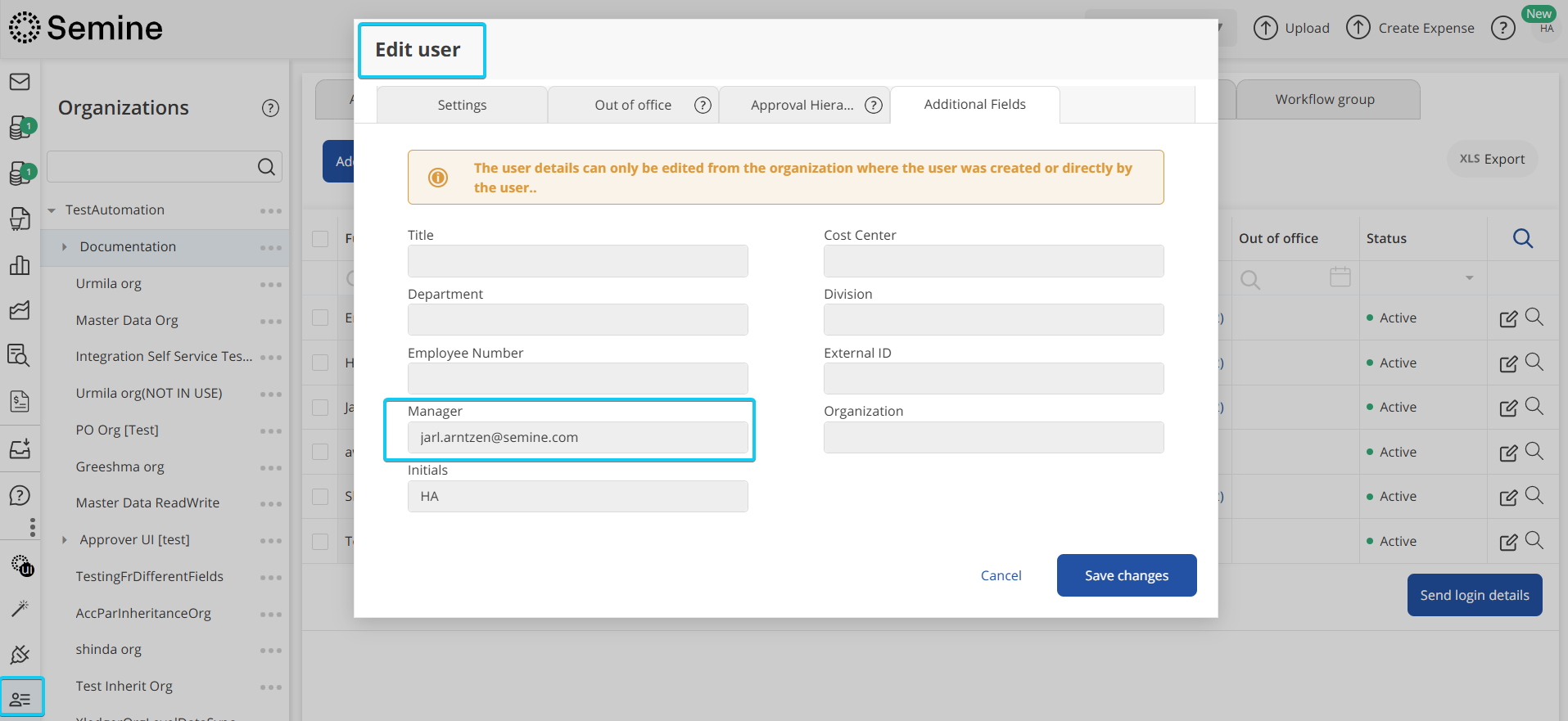
The user’s manager is defined in the User Profile. The manager must be specified using the email address of a user who is registered in SEMINE. To set or update the manager:
- Go to Administration.
- Select the relevant organization.
- Open Users.
- Click Edit user for the relevant user.
- Open the Additional fields tab.
- Select the appropriate manager in the Manager field.
- Save the changes.
See also: Getting started with Workflow to learn how to create your own workflows
Example
User A: Haima Ambily
User B: Jarl Arntzen
In this sequential workflow setup, Haima Ambily (User A) is listed as the first approver in Step 1, and the Buyer Reference in Step 2 is also Haima Ambily (User A). Since the same person cannot approve the same invoice twice, Step 2 is automatically escalated to User A’s manager, Jarl Arntzen (User B).
If User B is listed again in any workflow step for the same invoice, the next approval step is escalated to User B’s manager. This continues until the workflow reaches an approver who has not yet approved the invoice.
Workflow Status: Missing Recipient
If escalation cannot be completed—for example, if a manager is not registered—the invoice status changes to Missing recipient. This means the next approval step could not be assigned automatically and requires administrative review.
What to do when you have a missing recipient
If a recipient is missing, add the manager for the relevant user. After this, you must restart the workflow to apply the changes.
Out of Office Escalation
If an approver has activated Out of Office (OOO) and is listed multiple times in the approval process, Workflow Escalation follows this order:
- The first approval step is assigned to the user’s Out of Office approver.
- If escalation continues, the next step is assigned to the user’s manager.
See Also: Absence Assistance to configure the Out of Office approver.
Example: If an approver has XYZ registered as their manager and ABC as their Out of Office approver, the first approval step is assigned to ABC. If ABC has already been approved, the next step is escalated to XYZ’s manager.
Excluding a Workflow from Escalation
To exclude a specific workflow from escalation, enable the Don’t escalate to manager option on the Workflow page. This option is available only when Escalate to manager when single user involvement is enabled in the Settings.
Comments
0 comments
Please sign in to leave a comment.